VPN on iPhone in 5 minutes — the Karing app
Step-by-step guide with pictures: install the app, add the link from your account and turn the VPN on with one button.

Point your iPhone camera at the code to open Karing in the App Store
Install the Karing app
Open the App Store, search for “Karing” and tap “Get”. Or point your iPhone camera at the code above.
First launch
Open Karing. The app asks a few questions:
- language — your language;
- region — your country (local websites will open directly, without the VPN);
- agreement — tap “Agree”.
Copy the link from your account
Go to openvpn.pro → “My account” → “Your subscriptions”. Next to your order tap “Get Subscription URL” — the link is copied.
⚠️ Only copy the link with the button (or scan the QR code with the camera) — don't retype it or recognise it from a photo: a single wrong letter and Karing shows “download profile failed: 400”.
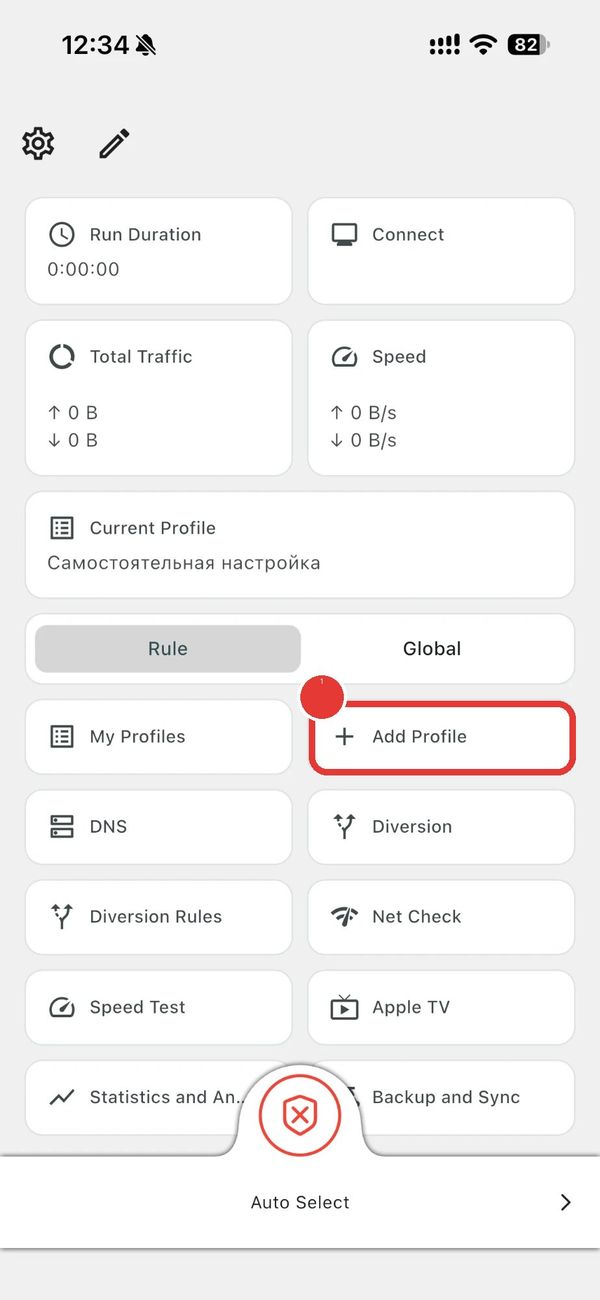
Tap “Add profile”
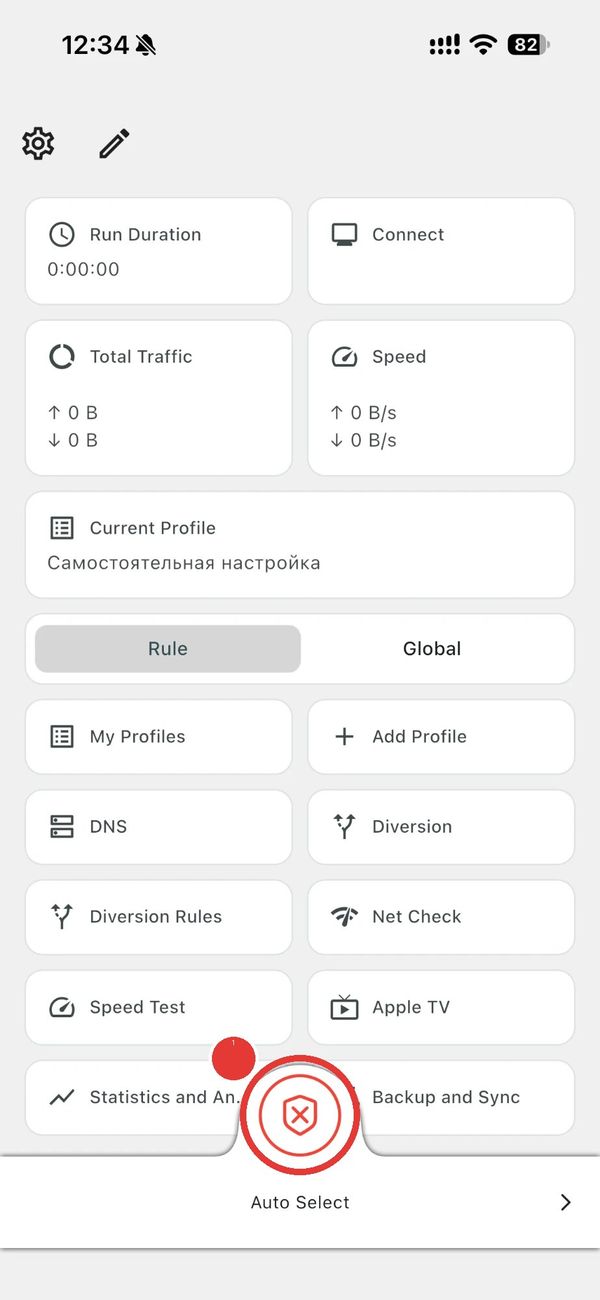
On the Karing main screen tap “Add profile” (highlighted).
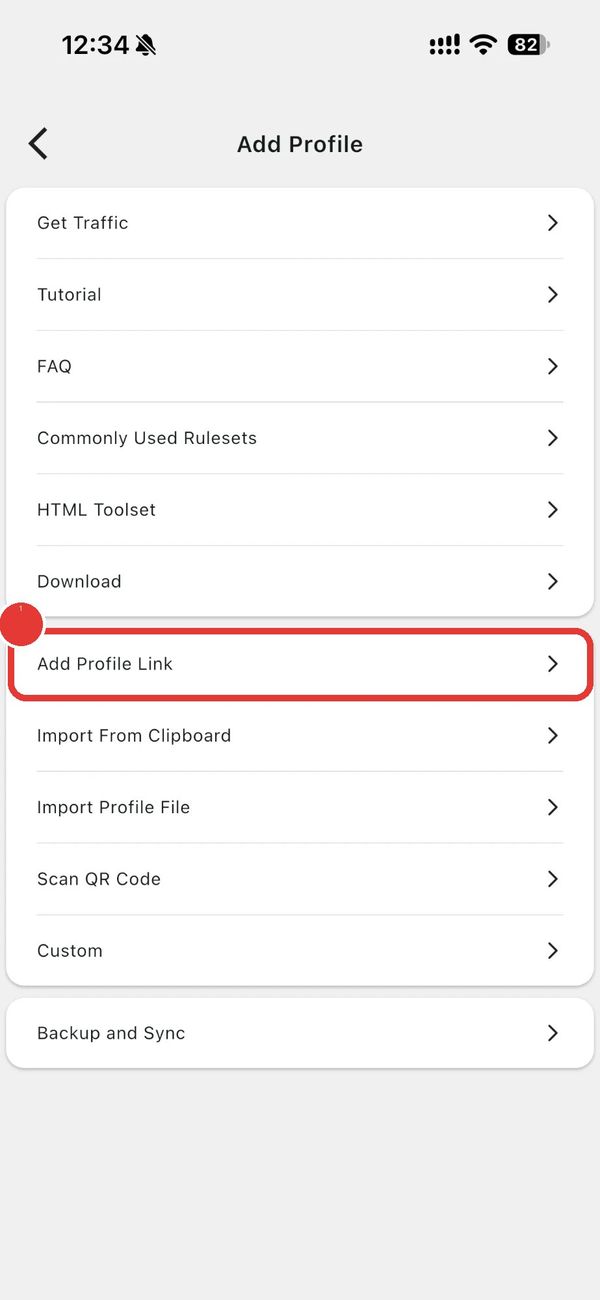
Choose “Add subscription”
In the list that opens tap “Add subscription”.
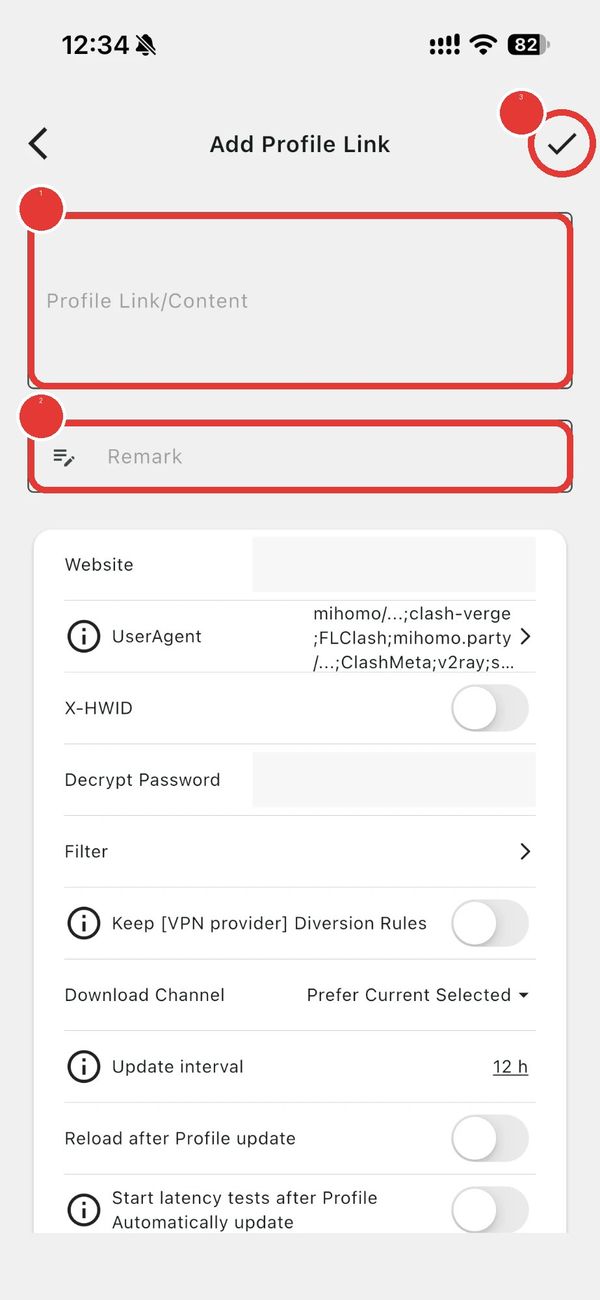
Paste the link and save
Paste the link into the top field (1): tap the field, hold your finger → “Paste”. Type “VPN” in the second field (2). Tap the ✓ check mark in the top right corner (3).
Turn the VPN on
Tap the big round button at the bottom of the screen.
The first time, iPhone asks to add a VPN configuration — tap “Allow” and enter your passcode (or Face ID).
Done: the button changes colour and the uptime counter starts. Tap the same button to turn the VPN off.
If something doesn't work
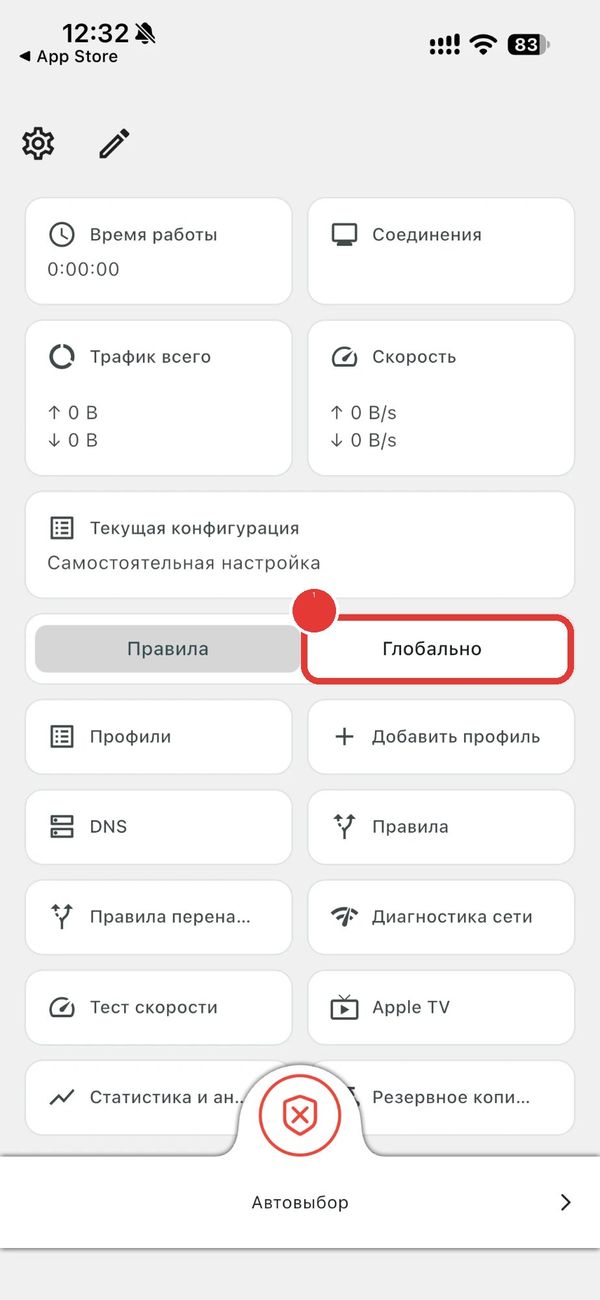
A website or app doesn't open
Tap “Global” on the main screen — then all websites and apps go through the VPN.
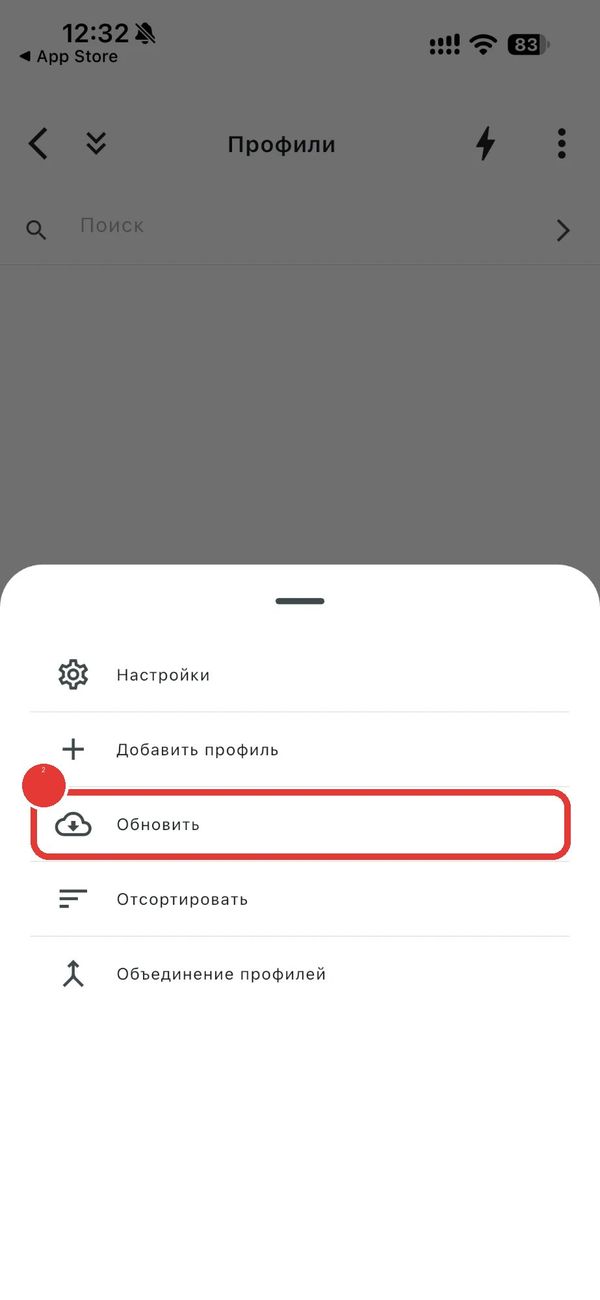
The VPN stopped working
Update the settings: open “Profiles”, tap the three dots ⋮ in the top right (1) → “Update” (2). Still not working — write to us in the chat on the website, we'll help.