OpenVPN macOS setup
Help
Setup with Tunnelblick
Tunnelblick is a free, open-source OpenVPN client that works on modern macOS. Setup steps:
1. Download and install Tunnelblick.
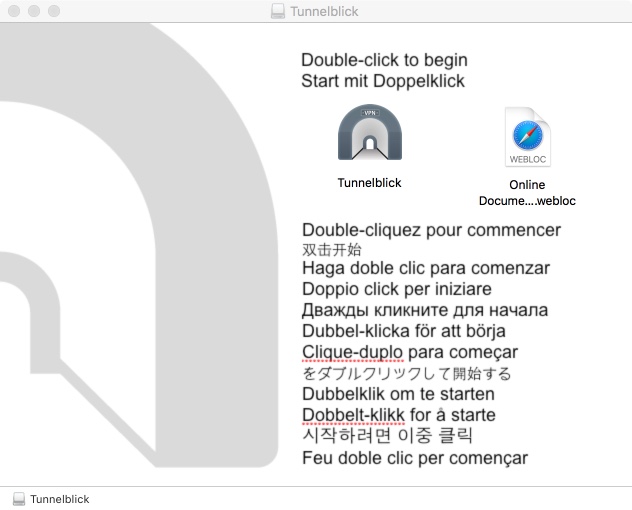
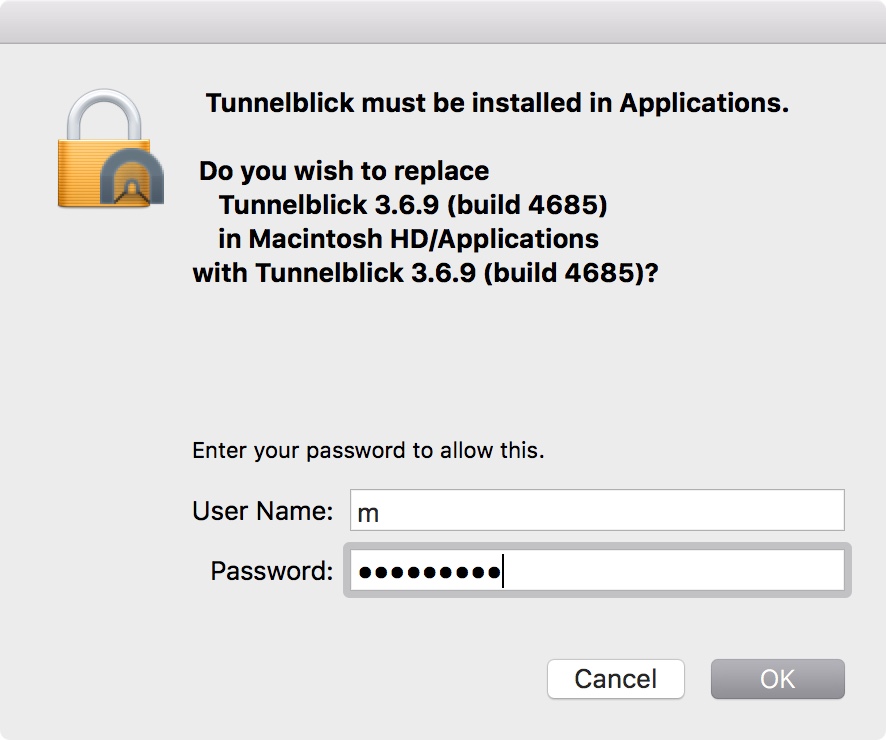
2. Unpack the configuration files provided by support, or download them from your account.
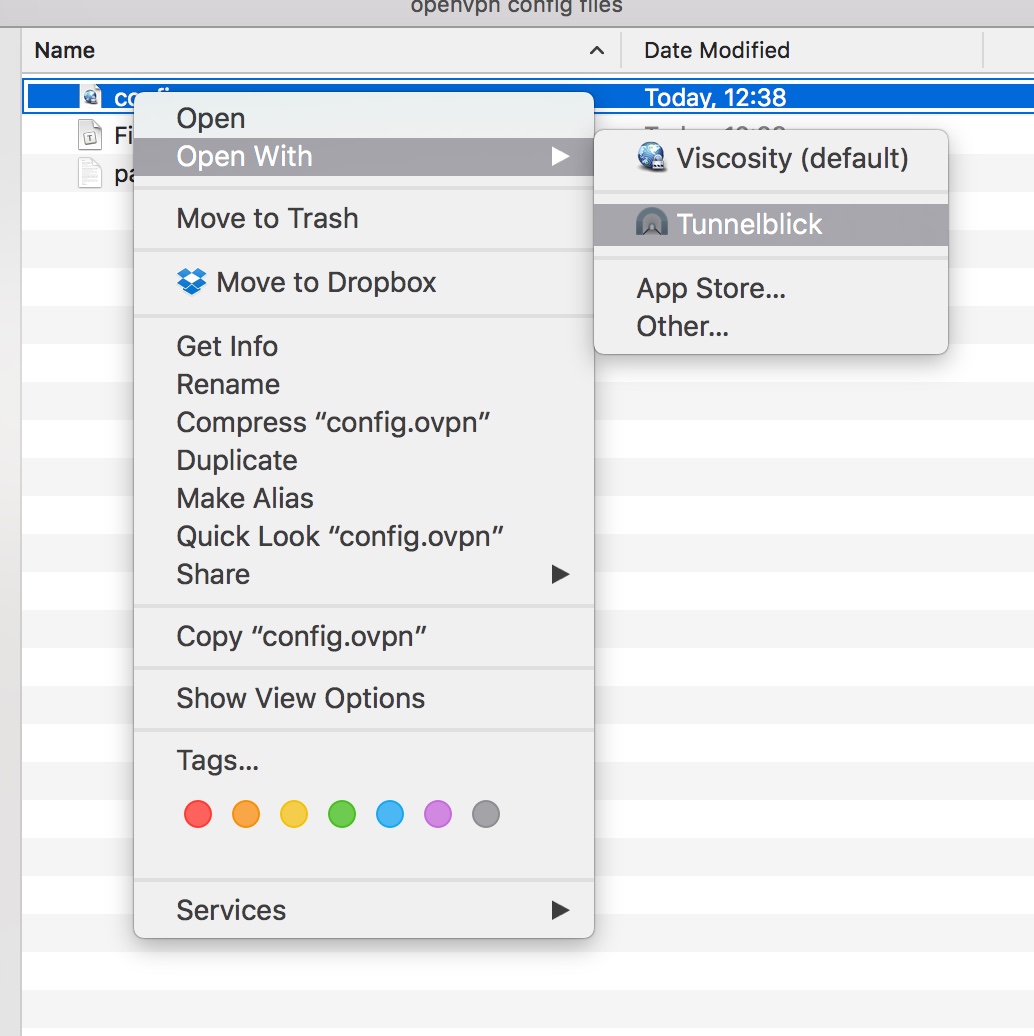
3. Open the .ovpn config file in Tunnelblick.
4. Choose Connect config in the Tunnelblick menu. When prompted, enter the credentials from pass.txt (also in the config archive).
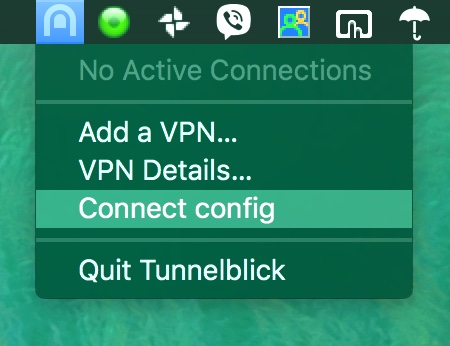
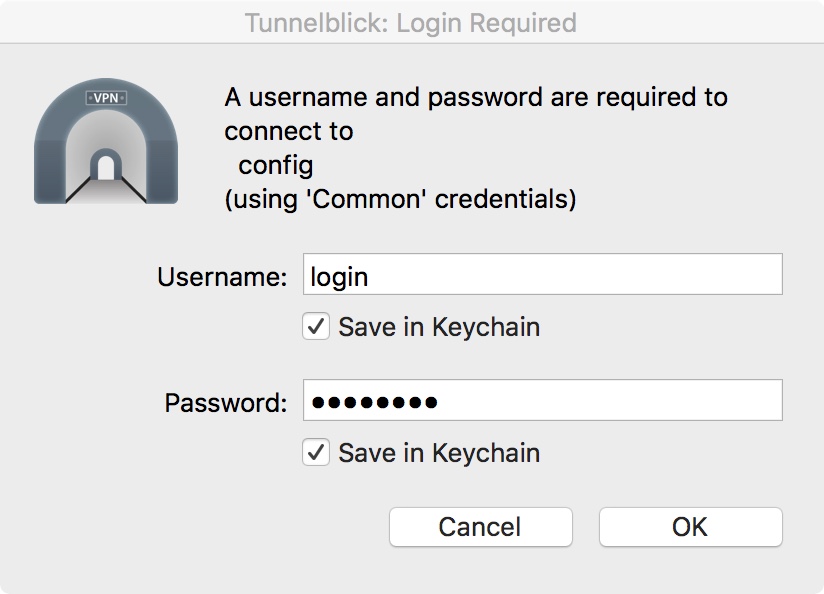
5. To verify the connection, visit whoer.net — the report should show the VPN's IP. To disconnect, choose Disconnect config from the Tunnelblick menu.
Setup with Viscosity
Viscosity is a polished commercial OpenVPN client.
1. Download and install Viscosity.
2. Unpack the configuration files (available in your orders) into any folder.
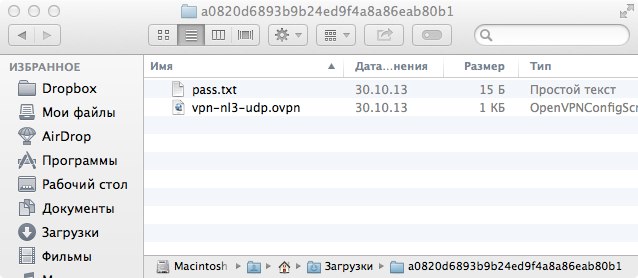
3. Open the .ovpn config in Viscosity.
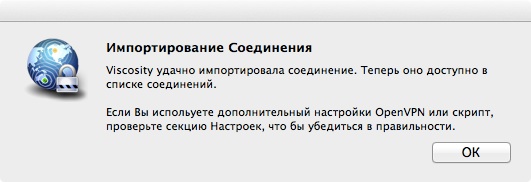
4. Click the Viscosity icon near the menu-bar clock, choose Connect, and enter the username and password from pass.txt (in the order archive).
5. To verify, visit whoer.net. To disconnect, click the Viscosity menu and choose Disconnect.
Setup with OpenVPN Connect 3
1. Download OpenVPN Connect 3 from openvpn.net and install it.
2. Download the configuration files from your dashboard and unpack them.
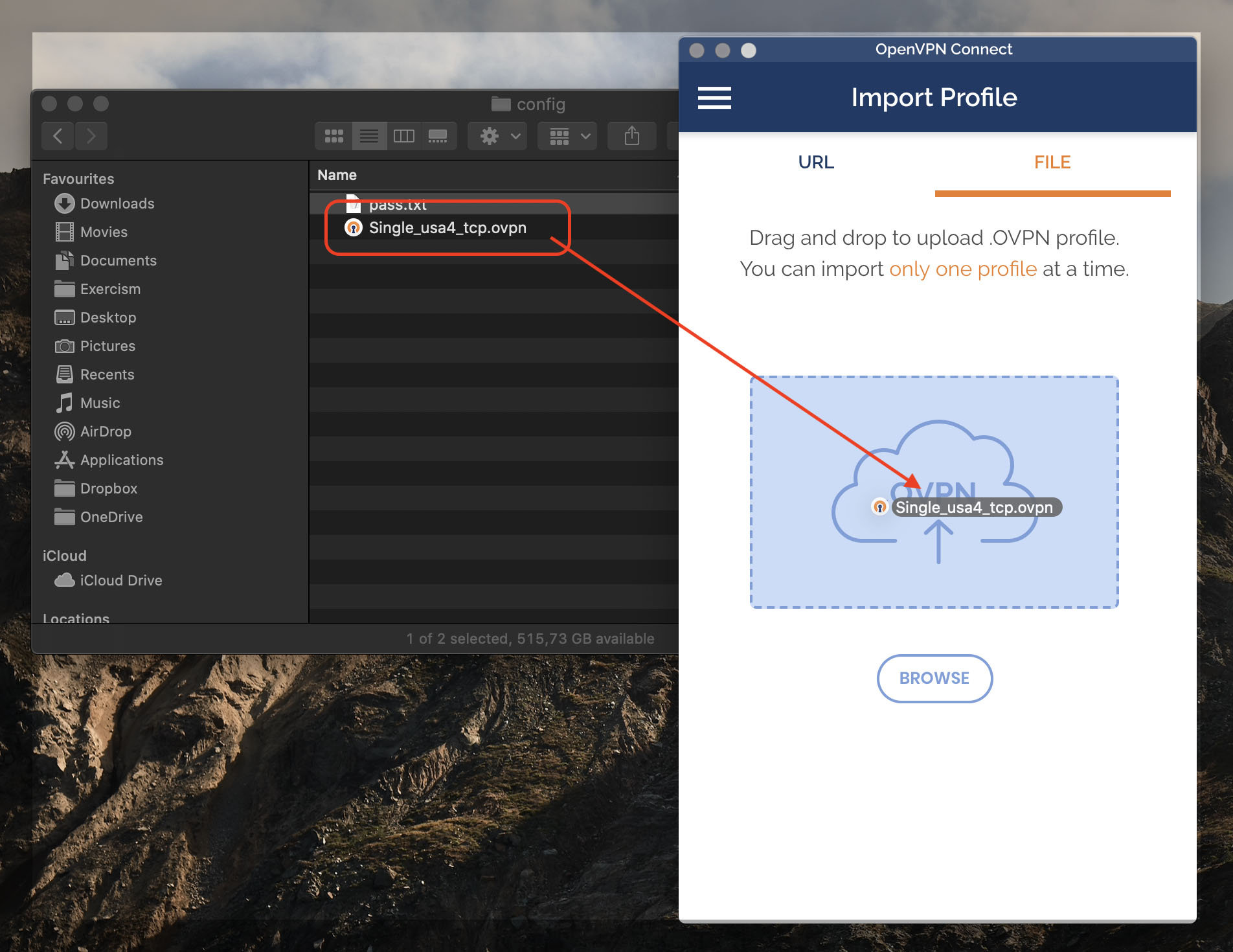
3. Drag the .ovpn file onto the OpenVPN Connect app to add it.
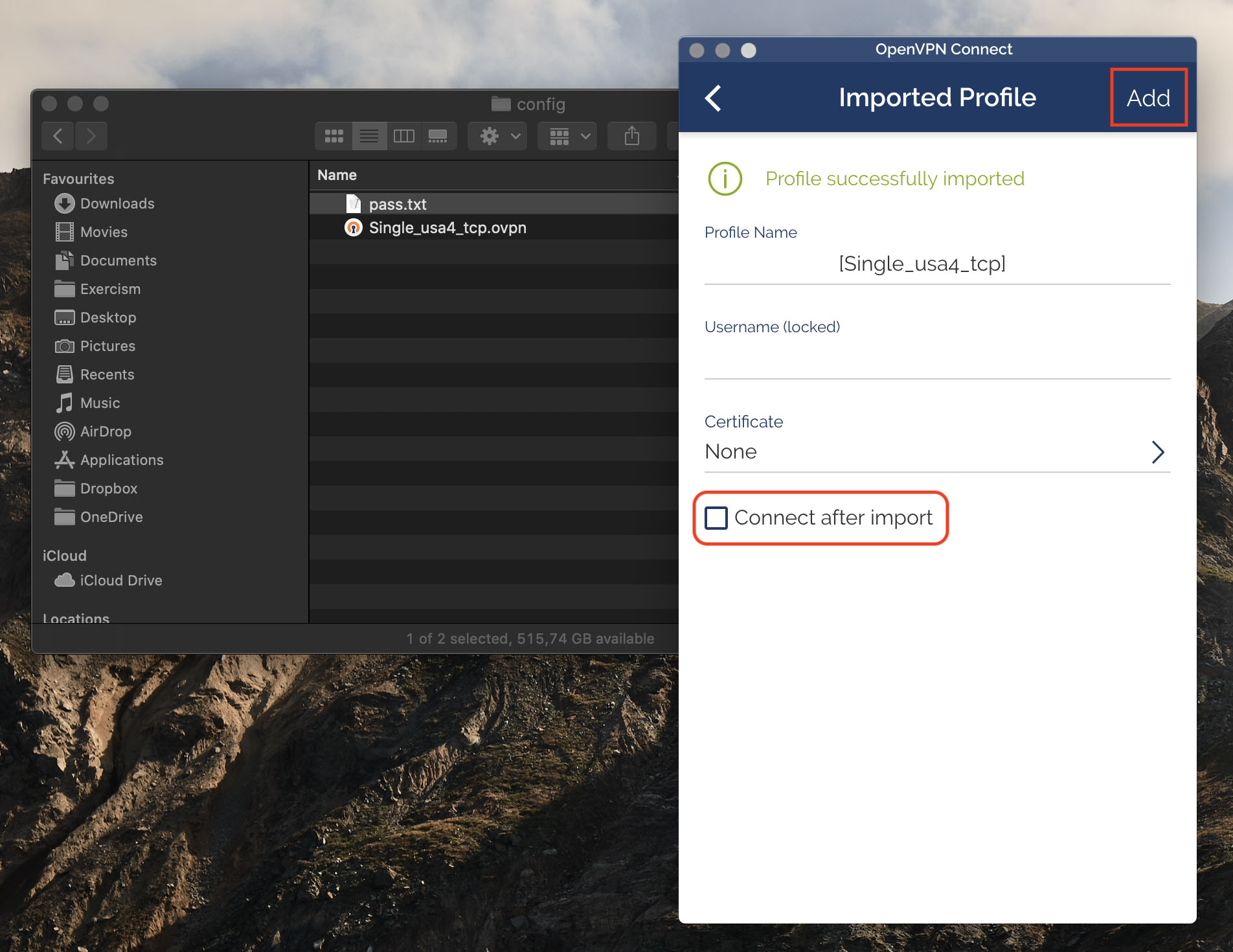
4. Tick "Connect after import" and click Add.
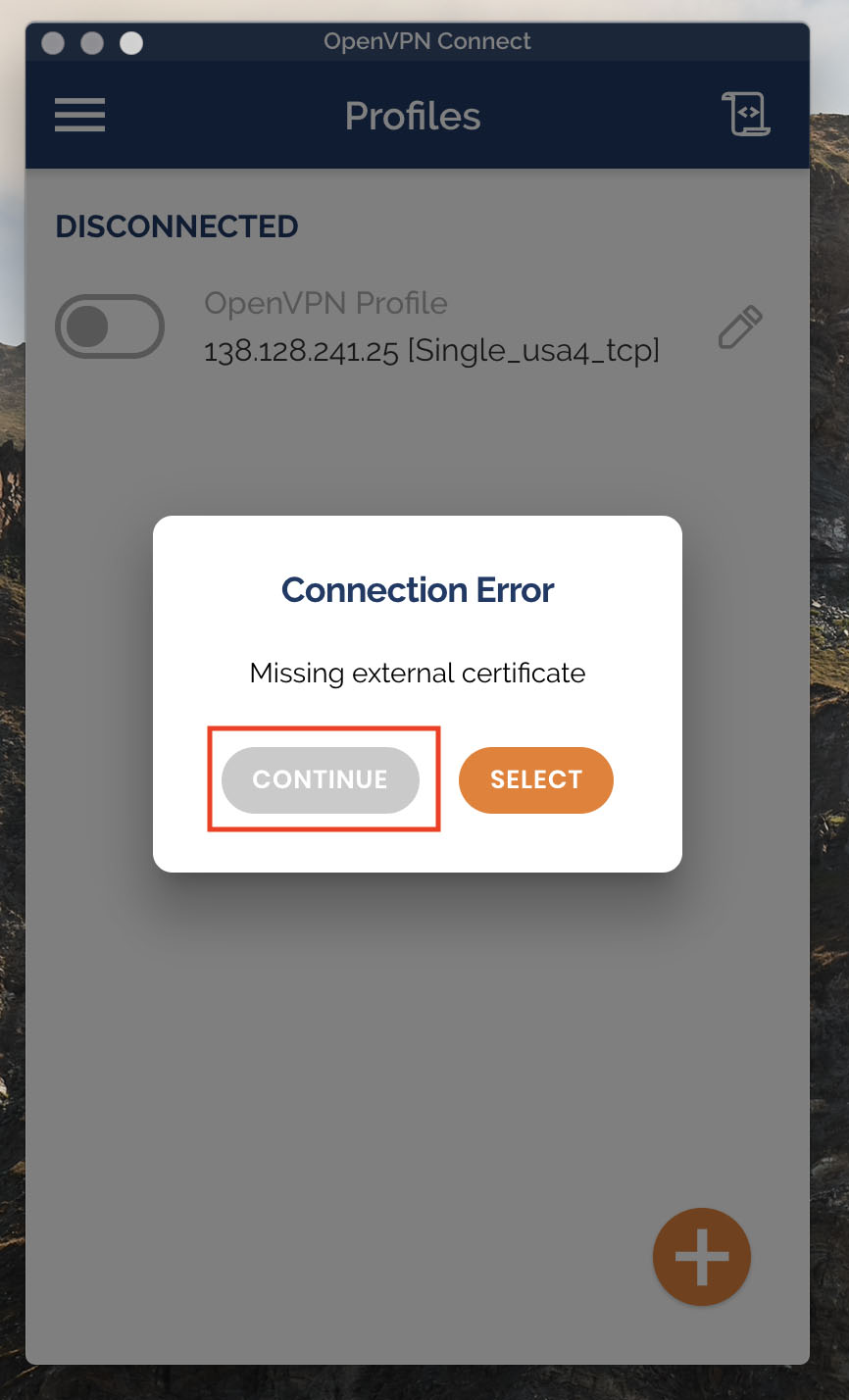
5. If you see "Connection error - Missing external certificate", click Continue.
6. To avoid that error in the future, add this line to your .ovpn config:
client-cert-not-required
then re-import the modified config into OpenVPN Connect.
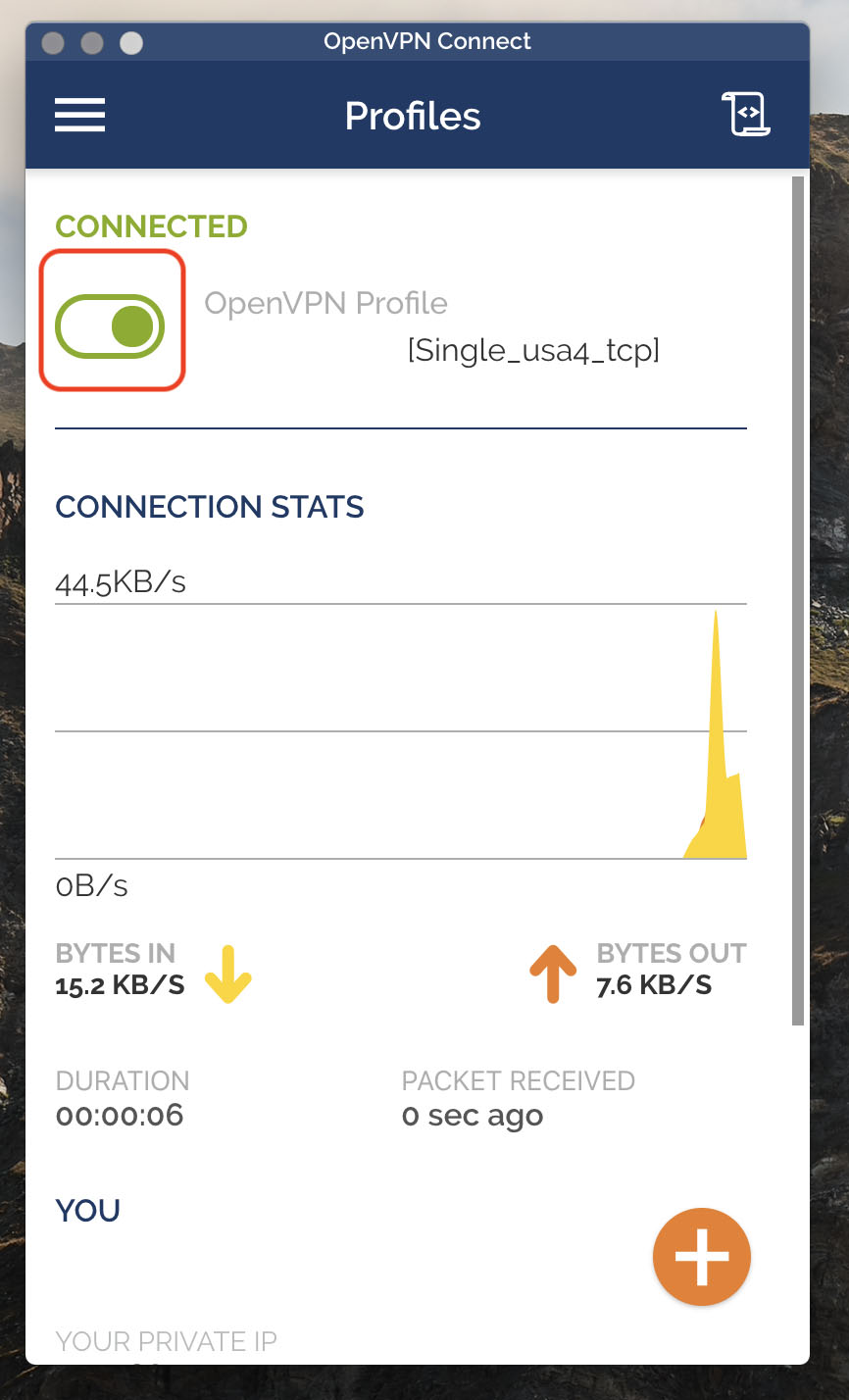
7. The VPN connection is now active and can be controlled in OpenVPN Connect.